
Connect DATEV & Lexoffice with letter sending
Print invoices, payment reminders and receipts from DATEV or Lexoffice automatically and send them by post. Set up via Zapier or Make in a few minutes – without an IT department.
 DATEV & LexofficeDATEV & Lexoffice
Connect DATEV & Lexoffice with physical letter sending
Many businesses use DATEV or Lexoffice as their accounting software – but physically posting invoices and payment reminders often remains a manual process. Print the invoice, address the envelope, frank it, take it to the post office – that costs time and money.
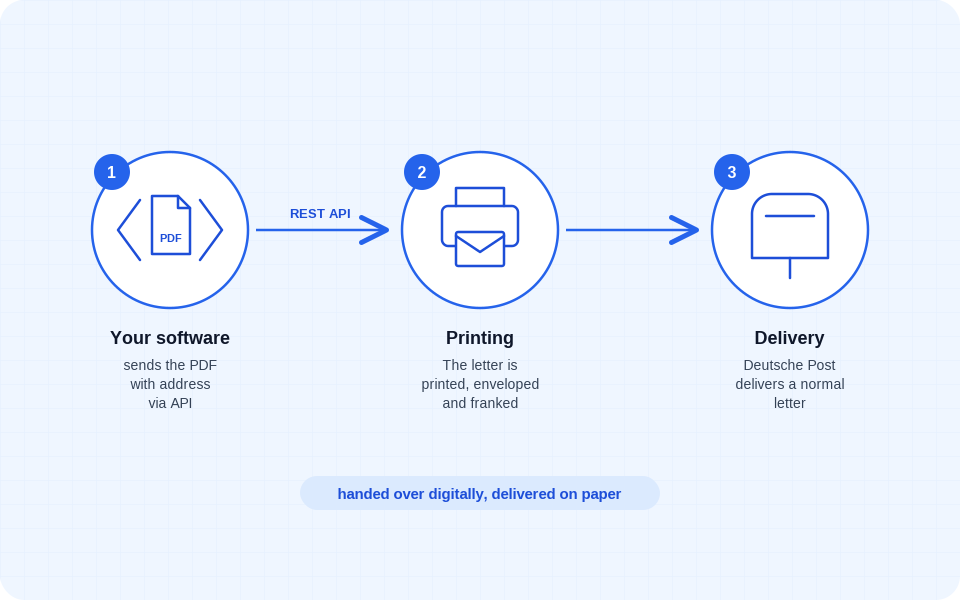
With briefsenden.com you automate this last step. Via Zapier or Make you connect your accounting directly with letter sending. As soon as an invoice is created or a reminder is due, briefsenden.com sends the letter automatically – printed, enveloped, franked, via Deutsche Post.
Setup requires no programming. Choose the matching trigger in Zapier or Make (e.g. "New invoice in Lexoffice" or "DATEV export"), configure the briefsenden action, and the workflow runs. Your tax adviser still sees all documents in DATEV – and now they are also delivered by post.
DATEV & Lexoffice
Integration partner
Example: Lexoffice → reminder by post
Automatic reminder sending for overdue invoices from Lexoffice.
Invoice overdue
Lexoffice detects an overdue invoice and sets the status to "reminder".
Zapier/Make trigger
The trigger fires automatically when the status changes.
Retrieve reminder PDF
The reminder PDF is downloaded from Lexoffice.
Send letter
briefsenden.com prints and sends the reminder.
Log status
The sending status is stored in Lexoffice as a note.
Set up the integration (via Zapier)
Create briefsenden + Lexoffice accounts
Sign up at briefsenden.com (generate an API key) and make sure your Lexoffice account has API access.
Configure the Zapier trigger
Create a new Zap in Zapier with the trigger "New invoice in Lexoffice" or "Invoice status changed".
Add a filter (optional)
Add a filter to send only invoices above a certain amount or with a certain status by post.
Filter: invoice_status = "overdue"
AND invoice_amount > 100Configure the briefsenden action
Choose briefsenden as the action and map the PDF URL and recipient data from Lexoffice.
Test & activate
Send a test letter in sandbox mode. If everything is right, activate the Zap for automatic sending.
DATEV & Lexoffice and letter sending: use cases
How businesses use DATEV & Lexoffice with briefsenden.com
Automate invoice sending
Every new invoice in Lexoffice or DATEV is automatically printed and sent to the customer by post.
Automatic dunning
Overdue invoices automatically trigger a reminder – the final reminder by registered mail.
Tax adviser documents
Send annual financial statements, tax assessments and receipts automatically by post to clients or the tax office.
Payslips and salary statements
Send monthly payslips from DATEV automatically by post to employees.
Zapier multi-step configuration
Step 1: Trigger
  App: Lexoffice
  Event: New invoice created
  Filter: Amount > €50

Step 2: Download PDF
  App: Lexoffice
  Event: Retrieve document PDF
  Input: {{Step1.invoice_id}}

Step 3: Send letter
  App: briefsenden
  Event: Create & send letter
  PDF: {{Step2.pdf_url}}
  Recipient: {{Step1.customer_name}}
  Street: {{Step1.customer_street}}
  Postcode: {{Step1.customer_zip}}
  Town: {{Step1.customer_city}}
  Options: B/W, simplex, standard

Step 4: Create note
  App: Lexoffice
  Event: Note on invoice
  Text: "Letter sent on {{now}}"
Frequently asked questions about DATEV & Lexoffice
Everything you need to know about DATEV & Lexoffice & briefsenden.com
Connect accounting with letter sending
Send invoices and payment reminders automatically by post. Sign up for free and try it out in test mode.